Video Intelligence
Introduction
The Video Intelligence feature allows users to leverage advanced tools for analyzing video content.
Using Video Intelligence feature
Video Intelligence outputs can be created by adding a 'video_intelligence' output format to your transcoding job. In order to do this, use the /v1/start_encode2 method to launch a transcoding job with the output param set to video_intelligence.
General Structure:
{
 "query": {
 "encoder_version": "2",
 "format": [
 {
 "output": "video_intelligence",
 "mode": "MODE_NAME"
 }
 ],
 "source": "VIDEO_URL"
 }
}
“MODE_NAME” - the mode in which you are going to apply video processing.
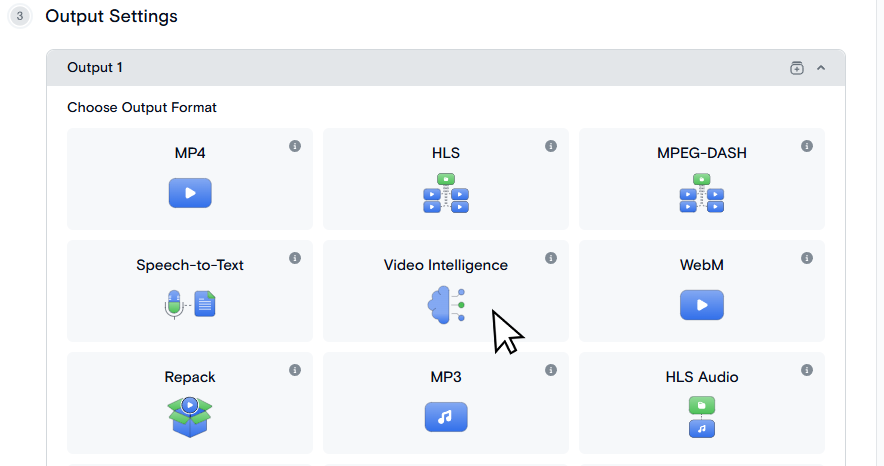
On the Transcode Media page choose Video Intelligence as an output format.
Available Modes
| Mode | Value | Description |
|---|---|---|
| Description | 'description' | Generates a comprehensive description of video content |
| Categorization | 'categorization' | Provides a list of categories based on video content |
| Content Moderation | 'moderation' | Evaluates whether a video violates content guidelines and provides reasons if applicable |
| Custom | 'custom' | Allows for results based on user-defined prompts |
| Search | 'search' | Searches for specific queries within the video content |
Description Mode
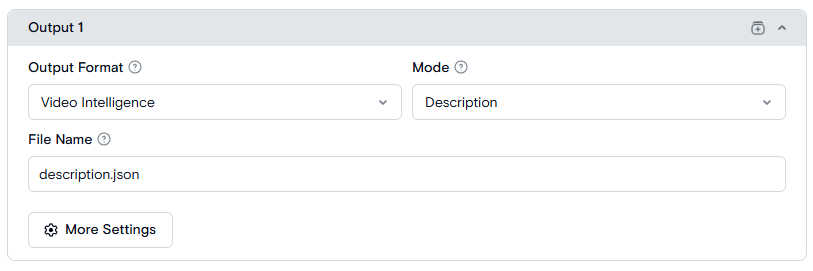
To apply Description mode set the mode parameter to 'description'.
Request Example:
{
  "query": {
    "encoder_version": "2",
    "format": [
      {
        "output": "video_intelligence",
        "mode": "description"
      }
    ]
  }
}
Response Example:
{
  "description": "The description of your video."
}
Description mode is set for default on the Output form.
Categorization Mode
To apply Categorization mode set the mode parameter to 'categorization'.
Optional parameter:
- categories — list of custom categories. If not provided, default categories are used.
Request Example:
{
  "query": {
    "encoder_version": "2",
    "format": [
      {
        "output": "video_intelligence",
        "mode": "categorization",
        "categories": [
          "Places",
          "Nature",
          "Vlogs"
        ]
      }
    ]
  }
}
Response Example:
{
  "categories": [
    "Places",
    "Nature",
    "Vlogs"
  ]
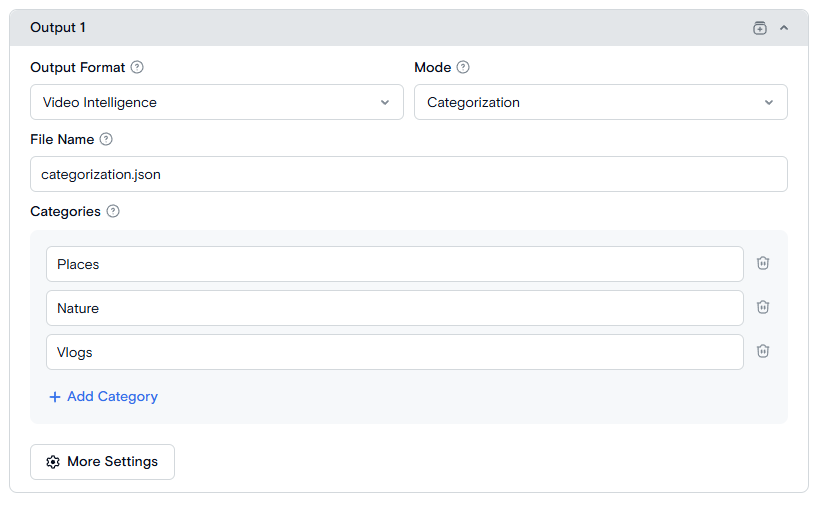
}- Choose the Categorization mode by the Mode selector.
- Provide custom categories by the Add Category button. If you leave this list empty, default categories are used.
Default categories
'Comedy', 'Music', 'Film', 'TV', 'Animation', 'Gaming', 'Sports', 'News', 'Politics', 'Current Event',
'Education', 'How-To', 'Science', 'Engineering', 'Technology', 'Business', 'Finance', 'Lifestyle',
'Vlogs', 'Food', 'Cooking', 'Travel', 'Places', 'Events', 'Home', 'Garden', 'Fashion', 'Beauty', 'Health',
'Fitness', 'Wellness', 'Family', 'Parenting', 'Relationships', 'Art', 'Design', 'Nature', 'Animals',
'Automobiles', 'Vehicles', 'Spirituality', 'Religion', 'Philosophy', 'Nonprofits', 'Activism', 'ASMR',
'Relaxation', 'Ambient', 'Support'
Content Moderation Mode
To apply Content Moderation mode set the mode parameter to 'moderation'.
Optional parameter:
- violation_reasons — list of custom violation reasons. If not provided, default reasons are used.
Request Example:
{
  "query": {
    "encoder_version": "2",
    "format": [
      {
        "output": "video_intelligence",
        "mode": "moderation",
        "violation_reasons": [
          "Dangerous Acts",
          "Graphic Violence",
          "Symbolism of Hate"
        ]
      }
    ]
  }
}
Response Example:
{
  "violates": true,
  "reasons": [
    "Dangerous Acts",
    "Graphic Violence"
  ]
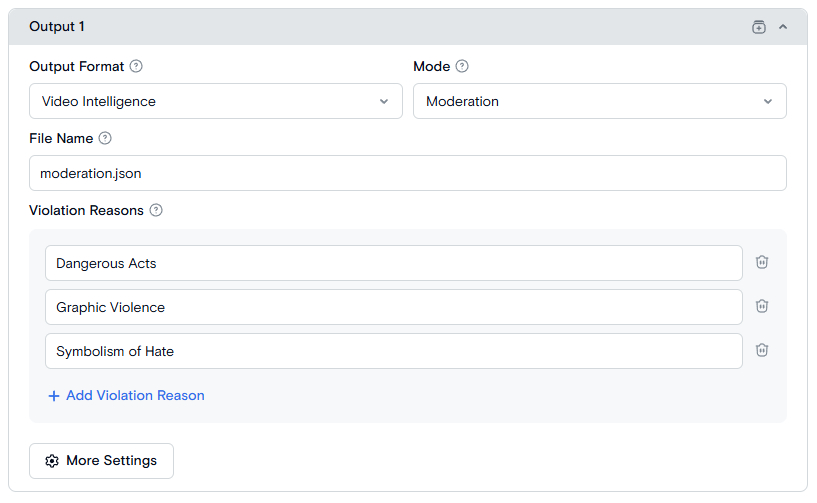
}- Choose the Moderation mode by the Mode selector.
- Provide custom violation reasons by the Add Violation Reason button. If you leave this list empty, default violation reasons are used.
Default violation reasons
'Violent Extremism', 'Non-Consensual Sexual Material', 'Organized Crime', 'Graphic Violence', 'Gore',
'Dangerous Acts', 'Specific Threats of Violence', 'Self-Harm', 'Suicide', 'Hate Speech', 'Slurs', 'Bullying',
'Targeted Harassment', 'Symbolism of Hate', 'Vulgarity', 'Adult Nudity', 'Sexual Content',
'Sexual Suggestiveness', 'Misinformation', 'Spam', 'Scam', 'Impersonation', 'Regulated Goods and Services'
Custom Mode
To apply Custom mode, set the mode parameter to 'custom'.
Required parameter:
- prompt — user-defined instruction for the model.
Request Example:
{
  "query": {
    "encoder_version": "2",
    "format": [
      {
        "output": "video_intelligence",
        "mode": "custom",
        "prompt": "Extract the license plate number on the car."
      }
    ]
  }
}
Response Example:
{
  "result": "The license plate number on the red car is AM-84865."
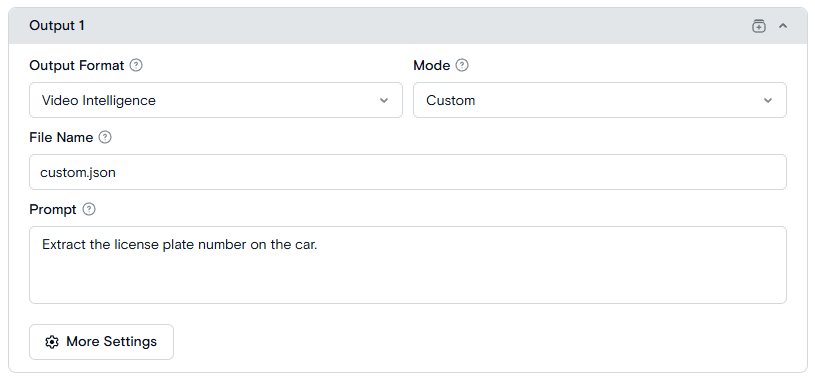
}- Choose the Custom mode by the Mode selector.
- Enter a prompt in the Prompt field. This field is required.
Search Mode
To apply Search mode, set the mode parameter to 'search'.
At least one of the following parameters must be provided:
- prompt — text query.
- media_prompt — direct URL to image.
- Format: JPEG, PNG
- Minimum Size: 128x128 pixels
- Maximum File Size: ≤ 5 MB
Requirements for the media prompt:
Optional parameters:
- search_rank_threshold - limit of what level of relevancy answers are returned from 1 and to user-defined limit.
- search_options - the part of video to search in.
- "visual": visual content of the video
- "audio": any non-speech audio
- "transcription": only speech part of audio
Request Example:
{
  "query": {
    "encoder_version": "2",
    "format": [
      {
        "output": "video_intelligence",
        "mode": "search",
        "prompt": "Man talking",
        "search_rank_threshold": 3,
        "search_options": [
          "visual",
          "audio"
        ]
      }
    ]
  }
}
Response Example:
{
  "result": [
    {
      "start": 3,
      "end": 9,
      "rank": 1
    },
    {
      "start": 12,
      "end": 19,
      "rank": 2
    },
    {
      "start": 24,
      "end": 30,
      "rank": 3
    }
  ]
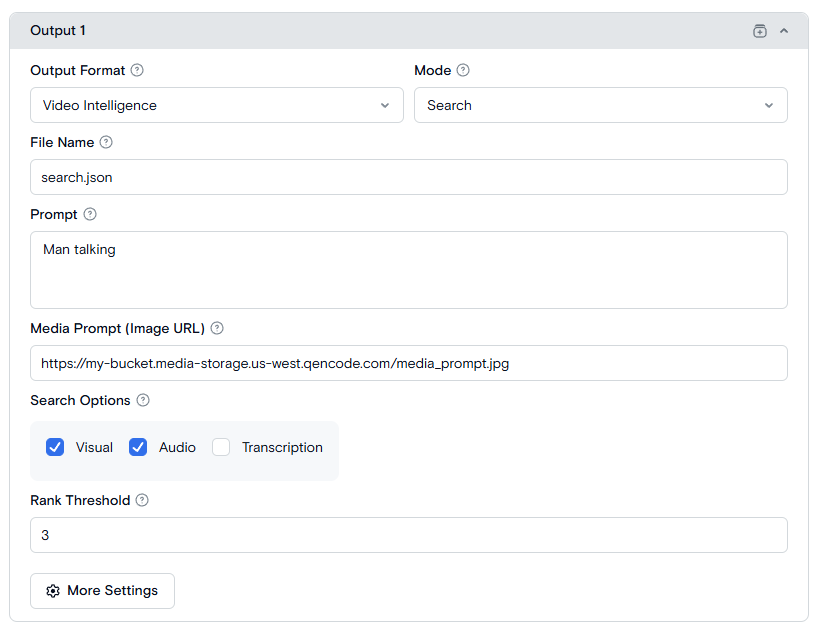
}- Choose the Search mode by the Mode selector.
- Enter a prompt in the Prompt field or provide a media prompt link in the Media Prompt field. At least one of these fields must be filled.
- Choose the search options. If not chosen, all search options will be used.
- Specify the rank threshold. If not specified all results will be provided in the output file.
Requirements for Video Upload
Before using the Video Intelligence feature, ensure your video meets the following requirements based on the mode you choose:
Description, Categorization, Content Moderation and Custom modes:
- Format: Must be a valid FFmpeg supported format.
- Size: Less than 2 GB.
- Duration: Between 10 seconds and 2 hours.
- Resolution: Between 360x360 and 5184x2160.
- Aspect Ratio: Between 1:1 and 2.4:1.
Search mode:
- Format: Must be a valid FFmpeg supported format.
- Size: Less than 4 GB.
- Duration: Between 4 seconds and 4 hours.
- Resolution: Between 360x360 and 5184x2160.
- Aspect Ratio: Between 1:1 and 2.4:1.

Saving Video Intelligence outputs
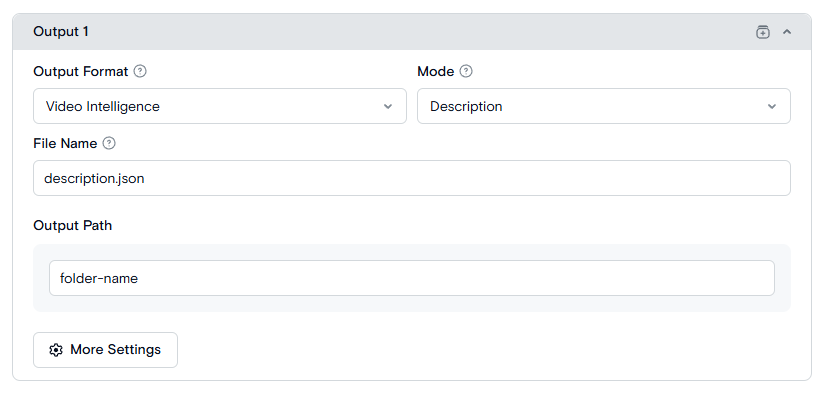
You can specify the name of an output file using the optional result_name parameter. If not specified the default name is used: description.json, categorization.json, moderation.json, custom.json, search.json.
The destination.url is a path to a folder where result file is saved.
Request Example:
{
  "query": {
    "format": [
      {
        "output": "video_intelligence",
        "mode": "description",
        "result_name": "description.json",
        "destination": {
          "url": "s3://us-west.s3.qencode.com/my-bucket/path"
        }
      }
    ],
    "encoder_version": "2",
    "source": "https://my-bucket.media-storage.us-west.qencode.com/source_video.mp4"
  }
}
This way the output file will be accessible at the link
s3://us-west.s3.qencode.com/my-bucket/path/description.json
- Set the result file name on the File Name field.
- Set the folder where the result file will be saved on the Output Path field.